Lyric video maker without a watermark: how to make one free
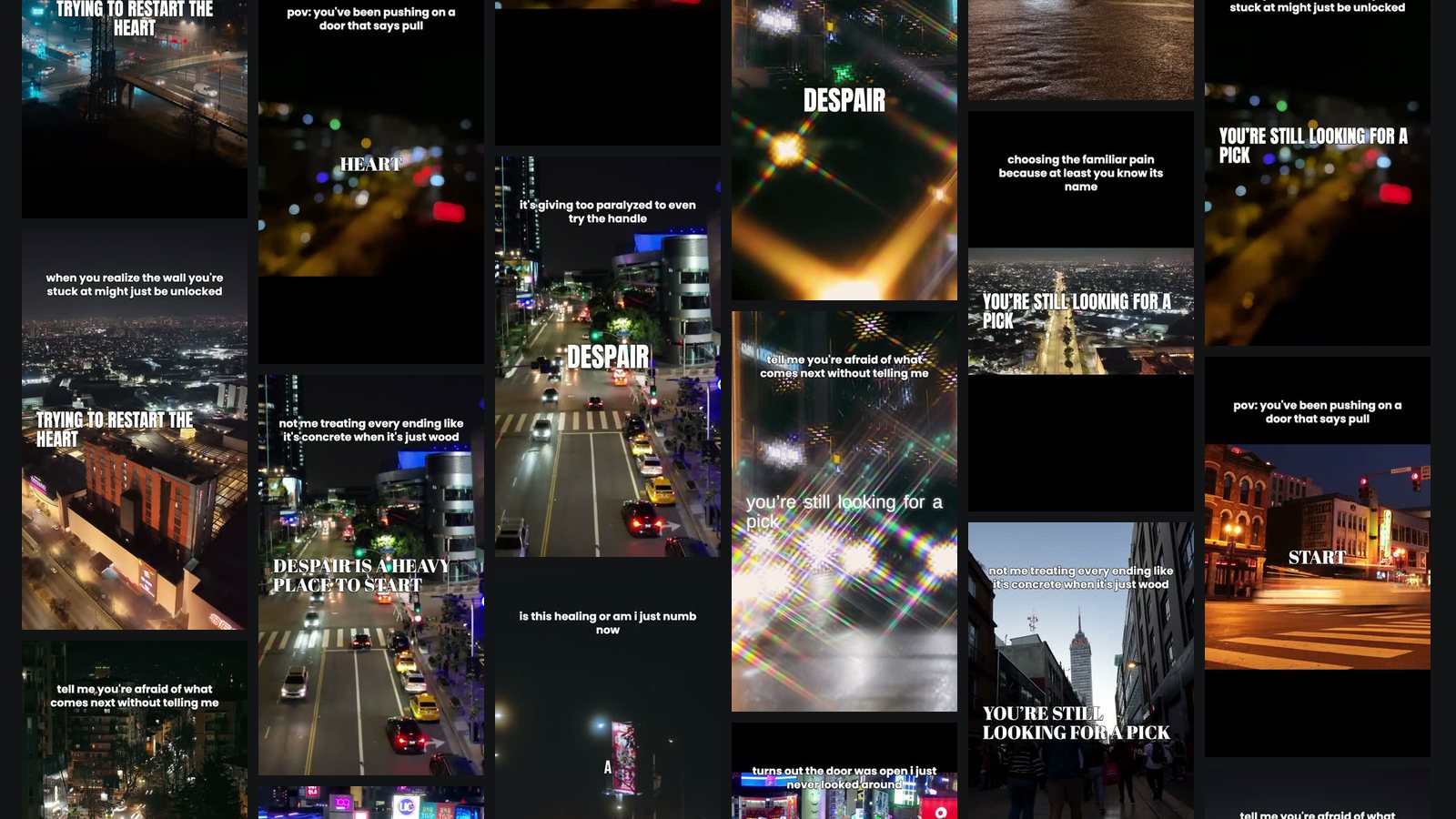
You find a free lyric video maker, spend an evening timing every line, hit export, and there it is: a logo in the corner, or an outro card with someone else's brand at the end of your song. Here's where watermarks usually hide, how to check before you start, and how to make a lyric video that's actually yours.
Where "free" usually costs you
A watermark in the corner is the obvious one. Free plans tend to hold back other things too:
- A logo on every frame, usually bottom right, exactly where TikTok and Reels already put their buttons.
- An end card: a few seconds of the tool's brand added after your song.
- Lower resolution: 720p or less, which looks soft on a phone screen and worse on YouTube.
- A length cap: 30 seconds or a minute, fine for a teaser, useless for a full song.
- A preview you can't download: you can make the video, but exporting it costs credits.
Check before you spend an evening
- Read the pricing page for the words "watermark", "export" and "resolution" before you upload anything.
- Export a five-second test with a line of text on it. Look at the corners and the last frame.
- Check the size of the file you got: a vertical video for TikTok should be 1080 by 1920.
- Check the length limit against your song, not against the chorus.
It takes five minutes and saves the version where you rebuild the whole thing in another app.
Your options
Do it by hand in a phone editor
Many phone video editors let you type text over a clip and set when each piece appears. It works, and if the export is clean it costs nothing. The price is time: every line, or every word, timed by hand, then redone when you change your mind about the footage. Fine for one video; hard to keep up when you need a few a week.
still.frame's free plan
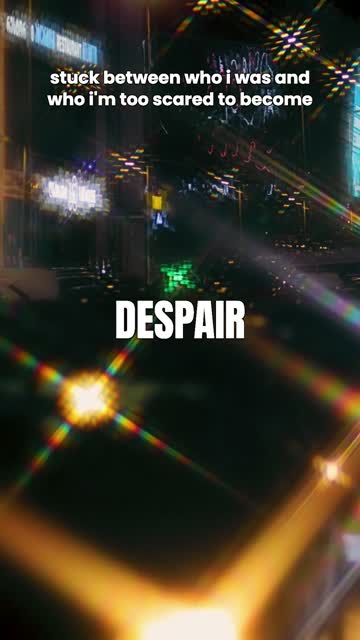
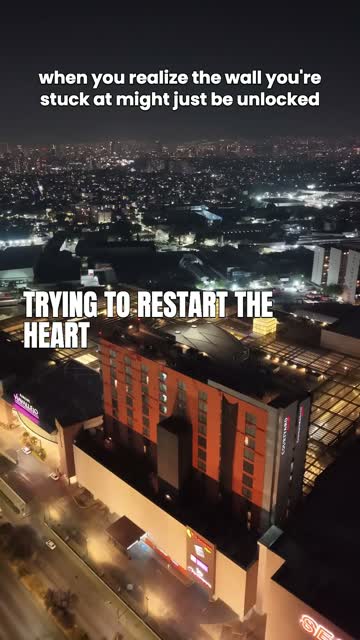
still.frame's free plan makes 10 vertical videos from one song: footage from a mood pack or your own clips, your lyrics on top, at 1080 by 1920, with no watermark and no end card. On the free plan you time the words yourself by tapping along to the song (the space bar marks the next word); paid plans time every word to the vocal automatically and add AI hook lines and cuts on the beat.

How to make a lyric video without a watermark in still.frame
- Upload the part of the song you want to post, usually the chorus, 10 to 20 seconds.
- Paste the lyrics, one sung line per line.
- Time the words. Play the song and tap along: each tap marks the next word. Click a word afterwards to nudge it. On a paid plan, press auto-sync instead and the words are timed to the vocal for you.
- Pick the footage: a pack grouped by mood (urban night, nature, lo-fi, space and more) or clips you shot yourself.
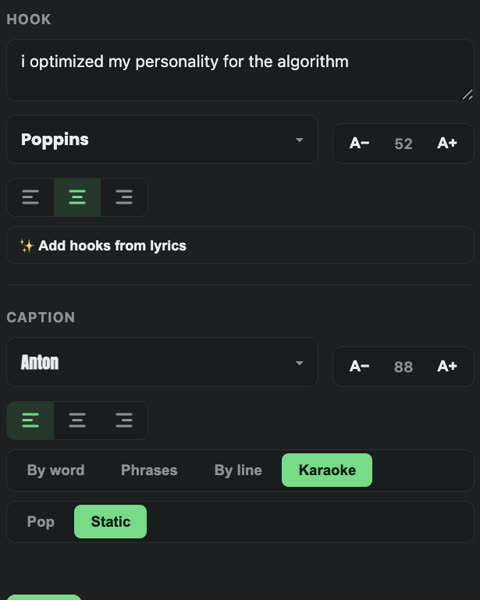
- Generate a batch of different videos of the same part, then fix anything in the editor: move the text, reroll a clip, switch to black and white.
- Download and post. No logo, no outro.
Full-length lyric videos
For the whole song on YouTube, still.frame makes full-length lyric videos: footage cut to the entire track, every line on the vocal, 16:9 at 1920 by 1080, also without a watermark. These are on the paid plans, starting with one a month on Starter at $10.
Making it look like it wasn't free
No watermark is the start. A few things make a lyric video look finished:
- Words on the vocal. A line that appears half a second early reads as a mistake. Time to the singing, not to the beat.
- One idea on screen at a time. A word or a short line, not the whole verse.
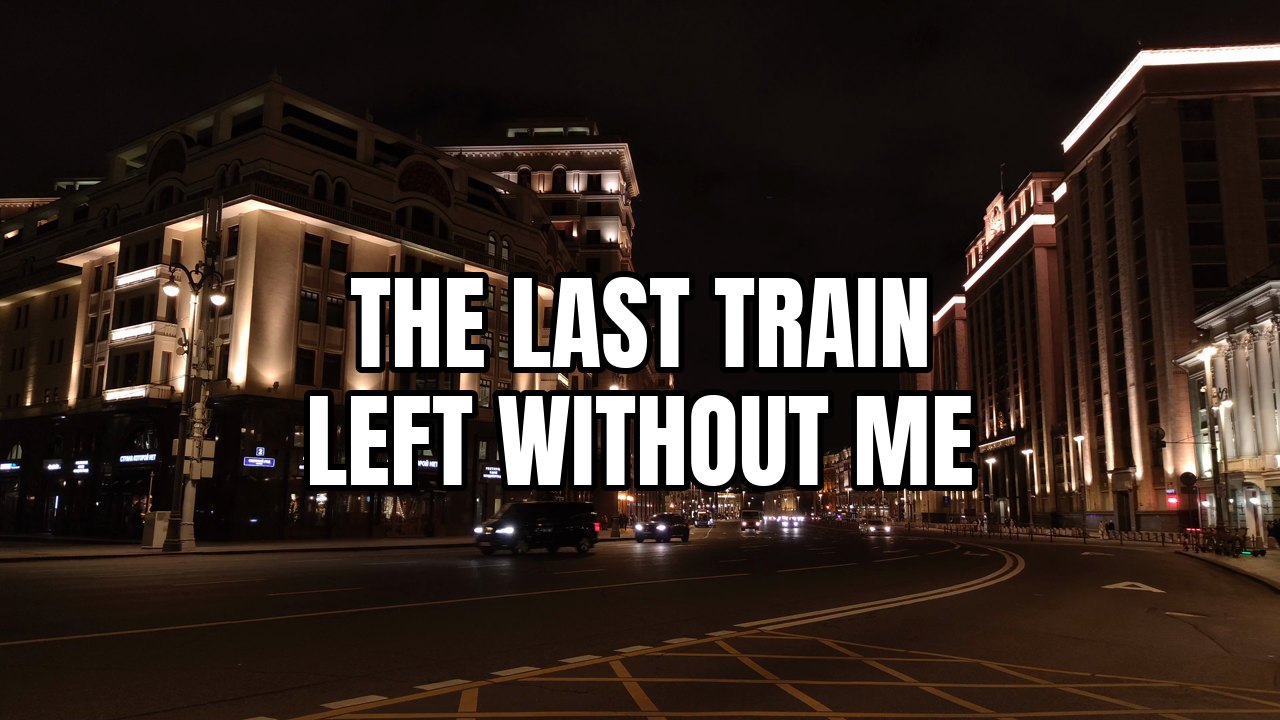
- Contrast. White type with a dark outline survives any footage; thin type over a busy city doesn't.
- Keep clear of the edges. On TikTok and Reels the bottom and the right side are covered by the caption and buttons.
- One look per song. The same font and footage mood across your posts makes them recognisably yours.